Time tracking for shift work: when to stop adding up hours by hand
Shift work means more to organise: several shifts, schedule changes, weekends, nights and overtime. Digital time tracking doesn't change how people work. It makes the record of that work readable, and the shifts easier to run.
Why shift work is harder to track
Office hours are simple: a set number of hours, Monday to Friday.
A shift schedule looks nothing like that:
- morning, afternoon and night shifts
- shifts of different lengths
- weekends and public holidays
- swaps agreed over text messages
- overtime
- changes at the last minute.
And the record still has to hold up. In case C-55/18 (2019) the Court of Justice of the EU ruled that employers need an objective, reliable and accessible system for recording each worker's daily working time. Night, overtime and shift hours are the ones that matter most, because they change what people are owed. National rules in your country usually spell out exactly which of these hours you have to record separately.
Signs it is time to switch
If most of this list happens to you every month, the spreadsheet has done its job:
- you run more than one shift
- people work at different locations
- shift swaps are frequent and you lose time chasing messages about them
- the team keeps growing
- you spend hours in spreadsheets
- every month you prepare hours for payroll by hand, and your own work waits while you do the paperwork.
What a digital system takes off your hands
Instead of writing hours down and adding them up later, everything lands in one place:
- hours worked per employee
- the shift overview
- overtime
- night and weekend work
- deviations from the schedule
- data ready for payroll.
There are plenty of tools that do some of this. Shift scheduling in Kloki is built so the schedule and the hours actually worked sit side by side, sorted the way your payroll needs them.
Who clocked in, and who is missing
When someone swaps a shift, stays late or comes in early, the change has to reach the final record.
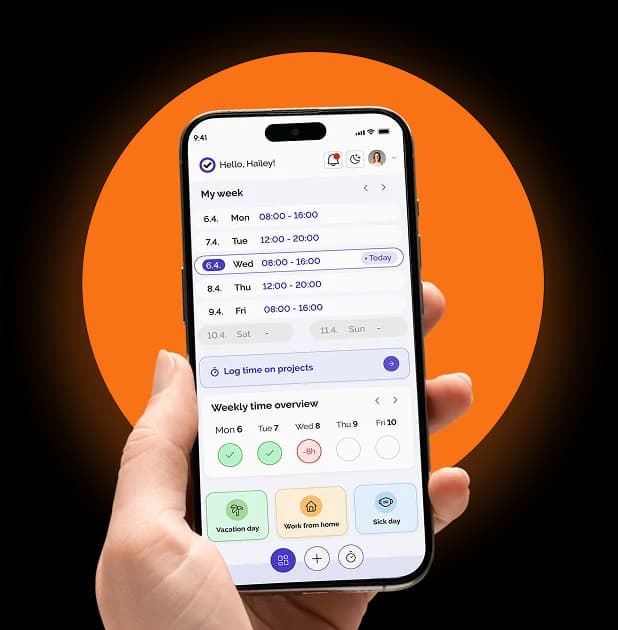
Managers in Kloki have a Who's at work view. It refreshes on its own and shows two lists:
- Clocked in: who is on the clock right now, since when, from which location, and whether they are on a break.
- Missing: people rostered into a shift that is running now, with no active clock-in. You see the shift they were scheduled for (say 08:00 to 16:00) and can add the clock-in for them.
The point is that a deviation shows up when it happens, not when you clean up the spreadsheet at the end of the month.
Kloki also catches the most common shift work mistake, the forgotten clock-out. Employees see their break time, today's total and their attendance for the last 14 days.
Shifts and work types in a few clicks
Most of the manual work in shift work is sorting hours: regular, afternoon, night, Sunday, public holiday, overtime.
Kloki has templates by type of work, so the basic setup is a single choice:
- Office: regular hours, Sunday work, holiday work, overtime
- Two shifts: regular hours, afternoon hours, Sunday work, holiday work, overtime
- Three shifts: regular hours, afternoon hours, night hours, Sunday work, holiday work, overtime
On top of that you switch individual work types on or off: overtime (above 8 h a day), Sunday work and holiday work.
If your schedule fits none of the templates, add work types yourself with one of three rules:
- by time: hours worked in a set range go to their own work type (for example night work, 22:00 to 06:00)
- by day: the whole day counts separately, whatever the hours (for example Sundays and public holidays)
- by threshold: hours above a limit split off into overtime (for example above 8 h a day)
The same work types appear in the Excel payroll report. Night, overtime and shift hours arrive at payroll already separated, which is what the record-keeping rules ask for in the first place.
Digital doesn't have to mean complicated
Going digital doesn't require card readers, terminals and a long rollout. For many teams a simple setup is enough: people record their time on a computer or phone, and managers see everyone.
You choose the clock-in channel in Kloki's settings:
- Mobile app and web: clock in from a computer or a phone
- Mobile app only: clock in from a phone only, which suits field work
If it matters where people clock in, switch on geofencing. You define allowed locations, each with its own radius (for example 50 m around a branch). A clock-in outside the circle is either recorded with a warning or refused. More on attendance clock-in.
If you work at several sites, such as building sites or branches, work locations are a separate list. Switch them on or off as projects open and close.
Shift work, with less checking
The hard part of shift work is often not entering the data but checking it afterwards. More people and more shifts mean more room for mistakes.
Instead of adding up columns, Kloki has a daily attendance overview. Pick a period and the people you want, and for each day you see hours worked, break time and when each person was clocked in. At month end the data is already sorted into work types, ready to review and send to payroll. For the monthly side, see our guide to the monthly timesheet.
Want to see how to set up shifts that fit your business? We'll walk you through it in a free demo: Book a demo